
Cara Namakan Fail Supaya Senang Dicari — dan Rename 200 Fail Sekali GusHow to Name Files So They're Easy to Find — and Rename 200 at Once
/ 4 min read
Table of Contents
Table of Contents
Pagi Isnin. Scanner pejabat baru hantar 200 fail ke shared folder: Scan 0001.pdf,
Scan 0002.pdf, Scan 0003.pdf… Bos nak semua invois tu ikut tarikh dan nombor invois sebelum
hujung minggu.
Masalahnya bukan satu fail. Masalahnya 200 fail — dan bulan depan, 200 lagi.
Kenapa nama fail penting
Nama fail ialah satu-satunya label yang orang lain nampak tanpa buka fail. Nama yang baik bagi tiga perkara:
- Boleh dicari. Taip
INV-2026-0453dalam search, terus jumpa. - Tersusun sendiri. Bila folder disusun ikut nama, fail keluar ikut tarikh atau nombor.
- Selamat dikongsi. Nama yang tak pelik tak rosak bila dihantar melalui email, zip atau sistem lain.
Scan 0001.pdf tak buat satu pun.
Tiga peraturan nama fail yang kemas
1. Tarikh di depan, format 2026-10-15.
Format 15-10-2026 nampak biasa, tapi bila disusun ikut nama, susunannya salah. Kami uji tiga
invois: dengan tarikh 15-10-2026, 02-11-2026 dan 28-09-2026, folder susun ikut hari —
2 November, kemudian 15 Oktober, kemudian 28 September. Dengan format 2026-10-15, susunannya
terus betul: September, Oktober, November.
2. Nombor dengan sifar di depan: 001, bukan 1.
Windows Explorer pandai susun Scan 2 sebelum Scan 10. Tapi bila fail di-zip, dihantar, atau
dibuka dalam sistem lain yang susun ikut huruf, Scan 10 keluar sebelum Scan 2. Dengan Scan 002
dan Scan 010, susunannya betul di mana-mana.
3. Elakkan aksara yang Windows tak benarkan.
Windows tak benarkan < > : " / \ | ? * dalam nama fail. Jadi Invois: Mac?.pdf atau
Laporan/Q3.pdf tak boleh disimpan. Nama seperti CON atau NUL juga dikhaskan untuk Windows.
Guna _ atau - sebagai pemisah — 2026-10-15_INV-0453_Syarikat-ABC.pdf.
Cara Windows sendiri — dan hadnya
Explorer: pilih semua fail, tekan F2, taip Invois, Enter. Windows tukar jadi
Invois (1).pdf, Invois (2).pdf… Laju, tapi itu sahaja yang ia boleh buat — takde tarikh, takde
nombor invois, takde format 001.
PowerShell: IT support boleh tulis skrip Rename-Item. Ia berkuasa, tapi kebanyakan staf office
takkan buka PowerShell — dan satu salah dalam skrip boleh rename 200 fail ke nama yang salah, kecuali
anda tahu guna -WhatIf untuk tengok dulu.
Untuk kebanyakan orang, dua-dua cara ada masalah yang sama: hasilnya hanya nampak selepas fail dah berubah.
Cara yang lebih selamat: preview dulu, rename kemudian
Yang kita perlukan sebenarnya mudah:
- Tetapkan rule — tarikh di depan, nombor
001, buang space. - Nampak nama baru setiap fail sebelum apa-apa berubah.
- Kalau ada masalah (dua fail dapat nama sama, aksara tak dibenarkan), ditahan sebelum berlaku.
- Kalau tersilap, undo.
EZ Bulk Rename
Kami buat EZ Bulk Rename untuk kerja ini. Ia tool Windows percuma yang run offline dalam PC anda.
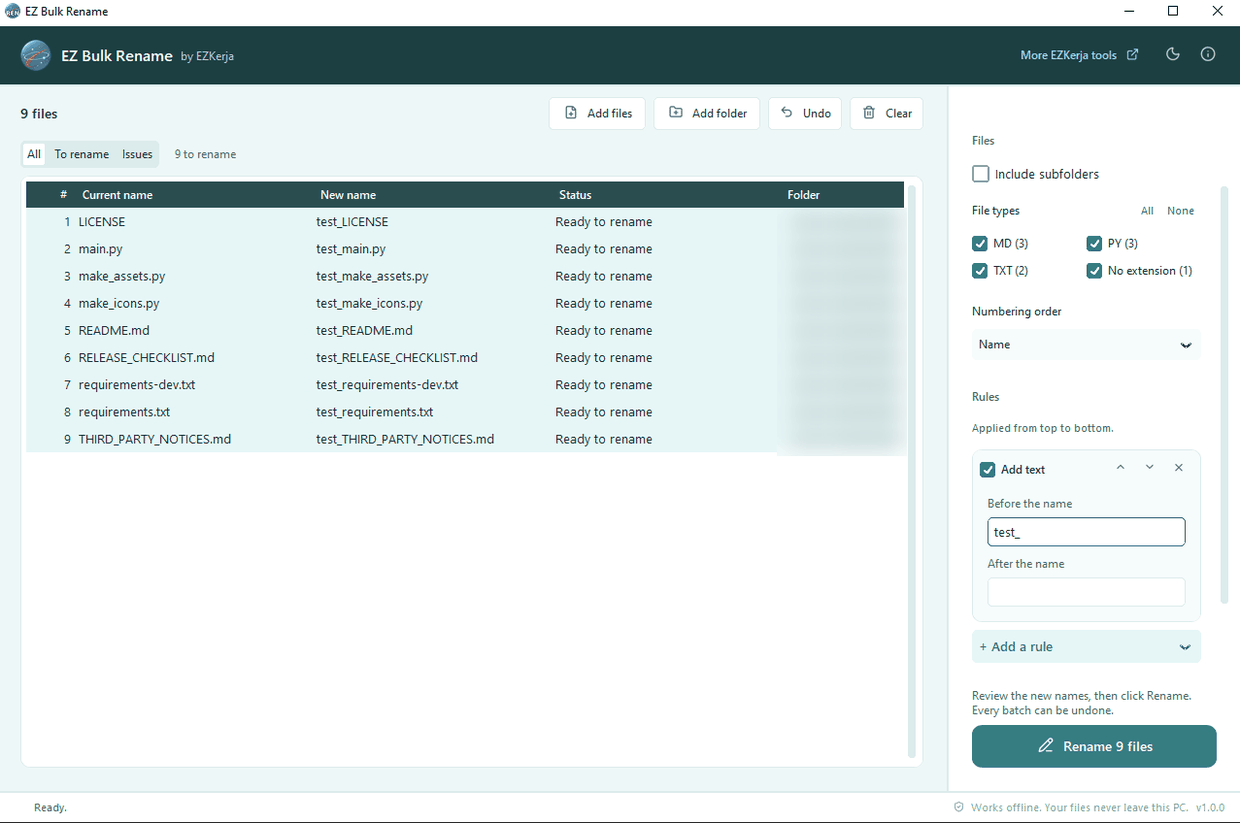
- Drag folder masuk, dan tambah rule: Insert date (tarikh di depan, format
2026-10-15), Numbering (001,002…), Clean up (space jadi_, buang aksara pelik), Find and replace, dan lain-lain. - Column New name tunjuk nama baru setiap fail. Bila dua fail akan dapat nama yang sama, atau ada aksara yang Windows tak benarkan, line jadi merah dan butang Rename kekal tutup.
- Rename from list — untuk HR: senarai Excel staff ID → nama staf, terus jadi nama fail.
- Undo dengan satu klik, atau dari undo log yang disimpan untuk setiap batch.
- Hanya tukar nama — ia tak pernah padam, salin atau buka fail anda.
Untuk 200 invois tadi: drag folder, tambah Insert date dan Numbering, semak preview, klik Rename. Siap.
Had tool ini
- Tarikh dari fail, bukan dari isi. Insert date guna tarikh fail diubah atau dicipta, bukan tarikh yang tertulis di dalam invois. Untuk nombor invois dari dalam dokumen, guna Rename from list dengan senarai Excel.
- Fail sahaja, bukan folder.
- Windows 10/11 sahaja. Belum code-signed — Windows SmartScreen mungkin bagi amaran kali pertama.
- Microsoft PowerToys ada PowerRename, juga percuma, kalau anda dah guna PowerToys.
Ringkasnya
Tarikh di depan dalam format 2026-10-15, nombor dengan sifar di depan, dan tanpa aksara pelik —
tiga peraturan ini cukup untuk buat mana-mana folder tersusun. Untuk fail yang dah ada, jangan
rename satu-satu: tetapkan rule, semak preview, dan rename sekali gus.
Download EZ Bulk Rename — percuma, takde account. Atau WhatsApp kami kalau ada soalan, Bahasa Melayu atau English.
Monday morning. The office scanner has just dropped 200 files into the shared folder:
Scan 0001.pdf, Scan 0002.pdf, Scan 0003.pdf… Your boss wants every invoice named by date and
invoice number before the end of the week.
The problem isn’t one file. It’s 200 files — and another 200 next month.
Why file names matter
A file name is the only label people see without opening the file. A good name does three things:
- It can be found. Type
INV-2026-0453into search and it’s there. - It sorts itself. When the folder is sorted by name, files come out in date or number order.
- It travels safely. A plain name doesn’t break when it is emailed, zipped or moved to another system.
Scan 0001.pdf does none of these.
Three rules for tidy file names
1. Date first, as 2026-10-15.
15-10-2026 looks normal, but sorted by name it comes out in the wrong order. We tested three
invoices dated 15-10-2026, 02-11-2026 and 28-09-2026: the folder sorts them by day —
2 November, then 15 October, then 28 September. With 2026-10-15, the order is simply right:
September, October, November.
2. Numbers with leading zeros: 001, not 1.
Windows Explorer is clever enough to put Scan 2 before Scan 10. But when files are zipped, sent,
or opened in another system that sorts by letters, Scan 10 comes before Scan 2. With Scan 002
and Scan 010, the order is right everywhere.
3. Avoid the characters Windows refuses.
Windows doesn’t allow < > : " / \ | ? * in file names, so Invoice: March?.pdf or
Report/Q3.pdf can’t be saved. Names like CON or NUL are reserved for Windows too. Use _ or -
as separators — 2026-10-15_INV-0453_Company-ABC.pdf.
What Windows can do itself — and where it stops
Explorer: select every file, press F2, type Invoice, Enter. Windows turns them into
Invoice (1).pdf, Invoice (2).pdf… Fast, but that’s all it does — no dates, no invoice numbers, no
001 format.
PowerShell: IT support can write a Rename-Item script. It’s powerful, but most office staff will
never open PowerShell — and one mistake in a script can rename 200 files to the wrong names, unless
you know to check first with -WhatIf.
For most people, both ways share the same problem: you only see the result after the files have changed.
A safer way: preview first, rename after
What we actually need is simple:
- Set the rules — date first,
001numbering, no spaces. - See every file’s new name before anything changes.
- Problems (two files getting the same name, a character Windows refuses) are stopped before they happen.
- If something is wrong afterwards, undo it.
EZ Bulk Rename
We built EZ Bulk Rename for this job. It’s a free Windows tool that runs offline on your PC.
- Drag a folder in and add rules: Insert date (date first, as
2026-10-15), Numbering (001,002…), Clean up (spaces to_, remove odd characters), Find and replace, and more. - The New name column shows every file’s new name. If two files would get the same name, or a character Windows refuses is used, the row turns red and Rename stays off.
- Rename from list — for HR: an Excel list of staff ID → staff name becomes the file names.
- Undo with one click, or from the undo log saved for every batch.
- Only renames — it never deletes, copies or opens your files.
For the 200 invoices: drag the folder in, add Insert date and Numbering, check the preview, click Rename. Done.
Limits of this tool
- File dates, not the date inside the document. Insert date uses the file’s modified or created date, not the date written on the invoice. For invoice numbers from inside documents, use Rename from list with an Excel list.
- Files only, not folders.
- Windows 10/11 only. Not code-signed yet — Windows SmartScreen may warn you the first time.
- Microsoft PowerToys includes PowerRename, also free, if you already use PowerToys.
In short
Date first as 2026-10-15, numbers with leading zeros, and no odd characters — these three rules
are enough to keep any folder in order. For the files you already have, don’t rename them one by
one: set the rules, check the preview, and rename them all at once.
Download EZ Bulk Rename — free, no account. Or WhatsApp us with any questions, in Malay or English.