
EZ Bulk Rename — Tukar Nama Banyak Fail Sekali Gus, PercumaEZ Bulk Rename — Rename Many Files at Once, Free
/ 4 min read
Table of Contents
Table of Contents
Fail scan sampai sebagai Scan 0001.pdf. Gambar dari telefon jadi IMG_2041.JPG. Setiap bulan,
invois, slip gaji dan laporan perlu nama yang betul sebelum masuk shared folder.
Tukar nama satu-satu memang boleh. Tapi untuk 200 fail, ia ambil masa — dan satu silap taip boleh buat fail “hilang” dalam folder yang orang lain guna.
EZ Bulk Rename tukar nama semua fail sekali gus, ikut rule yang anda tetapkan. Yang paling penting: anda nampak setiap nama baru sebelum apa-apa berubah, dan boleh undo dengan satu klik.
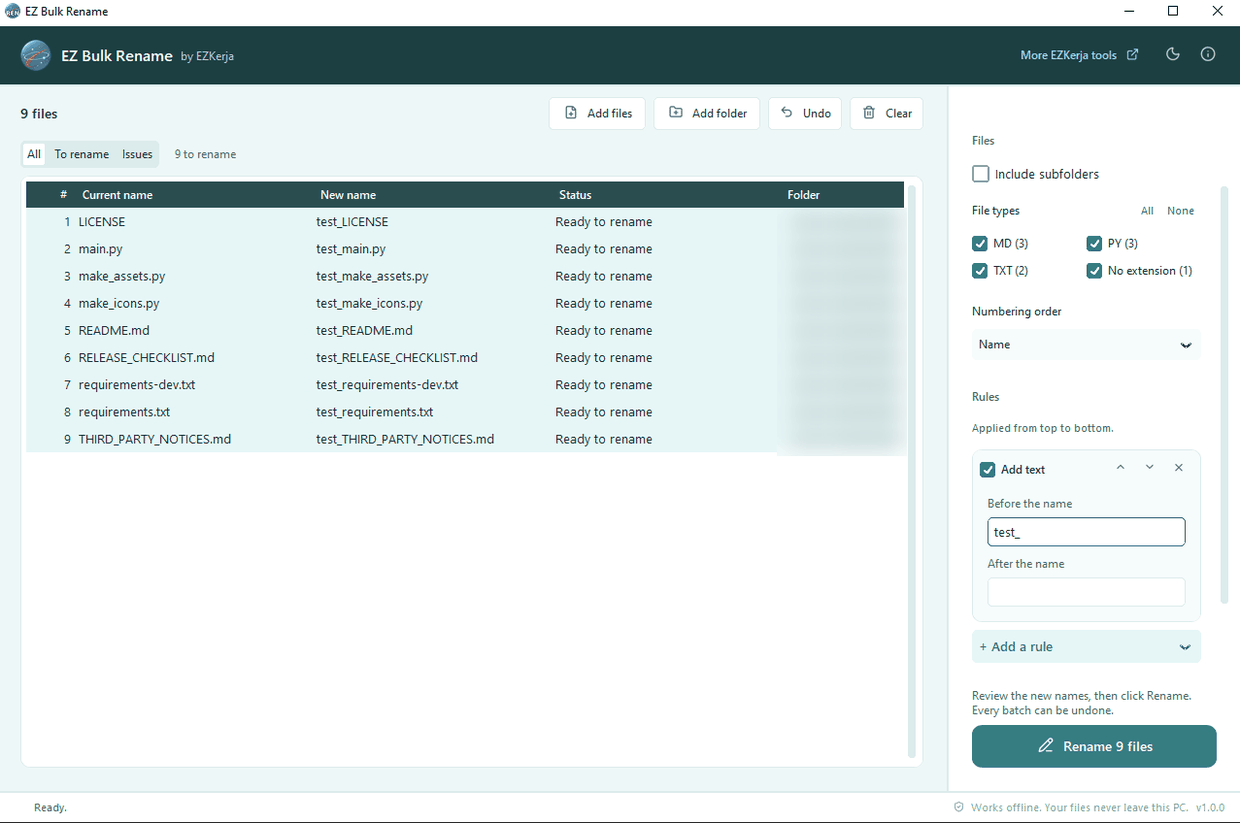
Tiga langkah
- Drag fail atau folder ke dalam window. Atau klik Add files / Add folder, atau right-click dalam Explorer → Send to → EZ Bulk Rename.
- Klik + Add a rule dan pilih rule — contohnya Numbering atau Insert date.
- Semak column New name, kemudian klik Rename.
Tersilap? Klik Undo → Undo last rename, atau tekan Ctrl+Z. Semua nama kembali seperti asal.
Rule yang boleh disusun
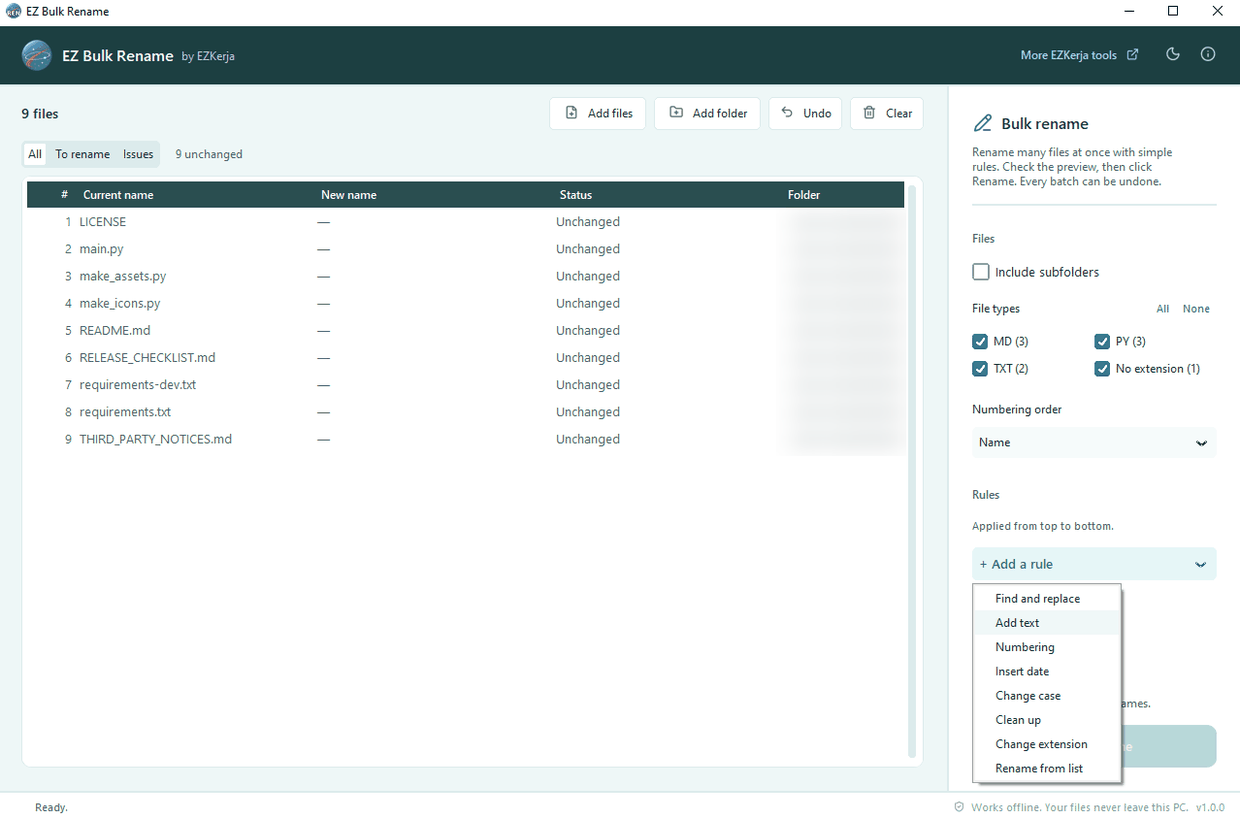
| Rule | Contoh |
|---|---|
| Find and replace | Scan → Invoice (ada mod regular expression untuk yang mahir) |
| Add text | tambah 2026_ di depan, atau _signed di belakang |
| Numbering | 001, 002, 003… — mula, langkah dan bilangan digit boleh ditetapkan |
| Insert date | tarikh fail diubah atau dicipta, contoh 2026-10-15_ |
| Change case | lower case, UPPER CASE, Title Case |
| Clean up | buang aksara tertentu, tukar space jadi _ atau - |
| Change extension | .JPEG → .jpg |
| Rename from list | ikut senarai Excel atau CSV — nama sekarang → nama baru |
Rule boleh ditambah seberapa banyak yang perlu, disusun semula dengan anak panah, atau ditutup sementara tanpa dipadam. Di sebelah kanan, File types senaraikan jenis fail yang ada (PDF, JPG, DOCX…) — untick jenis yang anda tak nak rename.
Untuk HR: fail yang dinamakan ikut staff ID (S001.pdf) boleh terus jadi nama staf
(Ahmad Faiz.pdf). Sediakan dua column dalam Excel — nama sekarang dan nama baru — dan guna rule
Rename from list.
Selamat sebelum, semasa dan selepas
- Isu ditunjuk sebelum berlaku. Kalau dua fail akan dapat nama yang sama, ada aksara yang Windows tak benarkan, nama dah wujud dalam folder, atau path terlalu panjang — line jadi merah dengan sebabnya, dan butang Rename kekal tutup sampai isu itu dibetulkan.
- Semua atau tiada. Kalau satu fail tak boleh di-rename (contohnya sedang dibuka dalam Excel), semua fail dikembalikan ke nama asal — tiada yang separuh jalan.
- Undo log untuk setiap batch. Nama asal disimpan dalam fail CSV sebelum rename bermula.
- Hanya tukar nama. Ia tak pernah padam, salin atau buka fail anda. Isi dan tarikh fail kekal.
- 100% offline, takde account, tak perlu admin rights.
Siapa yang guna
- Admin dan office — fail scan, invois dan laporan bulanan.
- HR dan finance — slip gaji dan dokumen staf ikut nama atau staff ID.
- IT support — kemas shared folder, atau cadangkan tool yang mudah kepada rakan sekerja.
Had tool ini
- Fail sahaja, bukan folder. Drop folder akan rename fail di dalamnya, bukan nama folder itu.
- Tarikh dari fail, bukan dari kamera. Insert date guna tarikh fail diubah atau dicipta — untuk gambar yang disalin dari telefon, itu mungkin tarikh salinan, bukan tarikh gambar diambil.
- Microsoft PowerToys ada PowerRename, juga percuma. Kalau anda dah guna, mungkin anda tak perlu tool ini.
- Windows 10/11 sahaja.
- Belum code-signed. Windows SmartScreen mungkin bagi amaran kali pertama — klik More info → Run anyway. Empat engine di VirusTotal menandakan installer ini sebagai berisiko; itu false positive yang biasa untuk app Python yang belum signed. Source code penuh ada di GitHub, dan page download tunjuk SHA-256 serta laporan VirusTotal.
Cara dapatkan
- Pergi ke page download EZ Bulk Rename.
- Klik Download Installer (.exe), double-click, Next sampai siap. Biarkan Send to ditanda supaya boleh rename terus dari right-click dalam Explorer.
- Buka EZ Bulk Rename, drag fail masuk, tambah rule, dan klik Rename.
Tak nak install? Ada versi portable (zip) di page yang sama.
Percuma sepenuhnya. Takde licence key, takde account, takde limit.
Download EZ Bulk Rename — atau WhatsApp kami kalau ada soalan, Bahasa Melayu atau English.
Scans arrive as Scan 0001.pdf. Phone photos are IMG_2041.JPG. Every month, invoices, payslips
and reports need proper names before they go into the shared folder.
Renaming them one by one works. But for 200 files it takes time — and one typo can make a file “disappear” in a folder other people use.
EZ Bulk Rename renames every file at once, following rules you set. Most importantly, you see every new name before anything changes, and you can undo with one click.
Three steps
- Drag files or a folder into the window. Or click Add files / Add folder, or right-click in Explorer → Send to → EZ Bulk Rename.
- Click + Add a rule and choose one — for example Numbering or Insert date.
- Check the New name column, then click Rename.
Made a mistake? Click Undo → Undo last rename, or press Ctrl+Z. Every name goes back.
Rules you can stack
| Rule | Example |
|---|---|
| Find and replace | Scan → Invoice (with a regular-expression mode for advanced users) |
| Add text | add 2026_ in front, or _signed at the end |
| Numbering | 001, 002, 003… — start, step and number of digits are up to you |
| Insert date | the file’s modified or created date, e.g. 2026-10-15_ |
| Change case | lower case, UPPER CASE, Title Case |
| Clean up | remove certain characters, turn spaces into _ or - |
| Change extension | .JPEG → .jpg |
| Rename from list | from an Excel or CSV list — current name → new name |
Add as many rules as you need, reorder them with the arrows, or switch one off without deleting it. On the right, File types lists the types present (PDF, JPG, DOCX…) — untick any you don’t want renamed.
For HR: files named by staff ID (S001.pdf) can become the staff member’s name
(Ahmad Faiz.pdf). Put two columns in Excel — current name and new name — and use the
Rename from list rule.
Safe before, during and after
- Issues shown before they happen. If two files would get the same name, a character Windows doesn’t allow is used, the name already exists in the folder, or the path is too long — the row turns red with the reason, and Rename stays off until it is fixed.
- All or nothing. If one file can’t be renamed (open in Excel, say), every file goes back to its original name — nothing is left half done.
- An undo log for every batch. The original names are saved to a CSV before the rename starts.
- Only renames. It never deletes, copies or opens your files. Contents and dates stay as they were.
- 100% offline, no account, no admin rights needed.
Who uses it
- Admin and office staff — scans, invoices and monthly reports.
- HR and finance — payslips and staff documents by name or staff ID.
- IT support — tidy shared folders, or recommend a simple tool to colleagues.
Limits of this tool
- Files only, not folders. Dropping a folder renames the files inside it, not the folder itself.
- File dates, not camera dates. Insert date uses the file’s modified or created date — for photos copied from a phone, that may be the copy date, not when the photo was taken.
- Microsoft PowerToys includes PowerRename, also free. If you already use it, you may not need this tool.
- Windows 10/11 only.
- Not code-signed yet. Windows SmartScreen may warn you the first time — click More info → Run anyway. Four engines on VirusTotal flag the installer; that is a common false positive for Python apps that aren’t signed yet. The full source code is on GitHub, and the download page shows the SHA-256 and the VirusTotal report.
How to get it
- Go to the EZ Bulk Rename download page.
- Click Download Installer (.exe), double-click it, click Next until done. Leave Send to ticked to rename files straight from Explorer’s right-click menu.
- Open EZ Bulk Rename, drag files in, add a rule, and click Rename.
Don’t want to install? There is a portable (zip) version on the same page.
Completely free. No licence key, no account, no limits.
Download EZ Bulk Rename — or WhatsApp us with any questions, in Malay or English.