
Banding Config Sebelum & Selepas Change — Cari Apa Yang BerubahCompare Config Before & After a Change — Find What Changed
/ 5 min read
Table of Contents
Table of Contents
Pukul 2 pagi. Change window dah habis. Anda ada dua fail: show running-config sebelum change,
dan selepas change. Sebelum tutup ticket, ada satu soalan yang kena jawab:
Apa sebenarnya yang berubah — dan ada tak benda lain yang berubah yang kita tak sengaja?
Kalau config tu 50 line, baca dua-dua pun boleh. Kalau 80,000 line, tak boleh.
Diff biasa jawab soalan yang lain
Cara biasa ialah buka tool diff — diff, plugin Compare dalam Notepad++, WinMerge atau
seumpamanya. Tool ni bagus. Tapi kebanyakannya banding fail ikut susunan: line 1 dengan line 1,
line 2 dengan line 2. Bila satu block line beralih tempat, diff nampak dia sebagai “dibuang di
sini, ditambah di sana”.
Contoh kecil (vendor-neutral, IP contoh). Satu change sahaja dibuat: NTP server ditukar dari
.10 ke .11. Tapi bila config dipapar balik, block Vlan20 keluar di atas Vlan10:
! Sebelum ! Selepasinterface Vlan10 interface Vlan20 description Users description Printers ip address 192.0.2.1 255.255.255.0 ip address 198.51.100.1 255.255.255.0! !interface Vlan20 interface Vlan10 description Printers description Users ip address 198.51.100.1 255.255.255.0 ip address 192.0.2.1 255.255.255.0! !ntp server 203.0.113.10 ntp server 203.0.113.11logging host 203.0.113.20 logging host 203.0.113.20Ini yang diff -u laporkan:
interface Vlan20 description Printers ip address 198.51.100.1 255.255.255.0!interface Vlan10 description Users ip address 192.0.2.1 255.255.255.0!interface Vlan20 description Printers ip address 198.51.100.1 255.255.255.0!ntp server 203.0.113.10ntp server 203.0.113.11logging host 203.0.113.20Satu change, sembilan line bertanda. Diff tu tak salah — dari segi susunan, memang itu yang berbeza. Tapi soalan engineer pukul 2 pagi bukan “susunan apa yang berubah”. Soalan dia ialah “line mana yang ada sebelum ni tapi dah takde, dan line mana yang baru”.
Dalam config sebenar, benda ni selalu jadi: device susun semula output, config di-export dari tool lain, atau section ditambah di tengah. Hasilnya, skrin penuh merah dan hijau, dan perubahan sebenar sukar dicari.
Dua soalan, dua cara banding
Cara fikir yang betul ialah pisahkan dua soalan ni:
- Ikut isi — “line ni wujud tak dalam fail satu lagi, di mana-mana pun?” Susunan diabaikan. Line yang tinggal sama ada berubah (ada line yang hampir sama di sebelah sana, contohnya IP lain pada interface yang sama) atau ada di satu fail sahaja.
- Ikut susunan — diff klasik, side by side.
Untuk contoh di atas, banding ikut isi bagi jawapan yang kita nak: 1 line berubah,
ntp server 203.0.113.10 → 203.0.113.11, dengan 10 → 11 sahaja yang di-highlight.
Tapi jangan buang cara kedua. Ada config yang susunannya adalah maksudnya: ACL, prefix-list,
route-map, firewall policy. Kalau dua line permit dan deny bertukar tempat, isinya sama tapi kesannya berbeza. Untuk config jenis ni, banding ikut susunan, dan pastikan line yang
berpindah ditanda sebagai berpindah, bukan dibuang.
Log: setiap line “berbeza” sebab masa
Log ada masalah sendiri. Bandingkan log hari ini dengan semalam:
2026-10-11 09:00:01 %LINK-3-UPDOWN: Interface Gi1/0/1, changed state to up2026-10-12 08:59:58 %LINK-3-UPDOWN: Interface Gi1/0/1, changed state to upEvent sama, tapi timestamp lain — jadi setiap line dalam log nampak berbeza. Dalam contoh tiga
line yang kami uji, semua tiga ditanda berubah. Bila timestamp diabaikan, yang tinggal cuma satu
perbezaan sebenar: interface yang down semalam Gi1/0/7, hari ini Gi1/0/9.
Kesilapan biasa
- Banding seluruh fail bila yang penting cuma satu jenis line. Kalau change tu pasal QoS
rate, banding line yang ada perkataan
ratesahaja. 80,000 line jadi beberapa ratus. - Banding log mentah dengan timestamp. Semua line jadi “berbeza”, yang penting hilang.
- Percaya “semua line berbeza” tanpa semak line ending. Satu fail Windows (CRLF), satu Unix (LF) — sesetengah tool anggap setiap line berubah.
- Guna diff ikut susunan untuk config yang susunannya tak penting — dan sebaliknya, abaikan susunan untuk ACL. Pilih ikut soalan.
Cara yang lebih baik
- Ambil config atau log sebelum dan selepas.
- Tentukan soalan: ikut isi (kebanyakan config dan log) atau ikut susunan (ACL, policy).
- Buang noise: timestamp, empty line, beza space.
- Kalau change tu tertumpu, tapis line yang berkaitan sahaja.
- Semak setiap perbezaan, dan simpan senarai untuk laporan change.
EZ Text Compare: semua langkah ini dalam satu tool
Kami buat EZ Text Compare sebab kerja ni berulang setiap change window. Ia tool Windows percuma yang run offline dalam PC anda.
- Drop dua fail — fail lama ke kiri, baru ke kanan secara automatik. Atau paste output terus dari terminal. Kemudian klik Compare.
- Ignore line order (default) — banding ikut isi. Untick untuk diff side by side yang ikut susunan, dengan Detect moved lines untuk ACL dan policy.
- Highlight changed characters — dalam line yang berubah, hanya bahagian yang berubah ditanda.
- Only compare lines containing — taip
rate,interfaceatau apa saja; line lain diabaikan. Huruf besar atau kecil tak kisah. - Ignore — empty line, beza space, huruf besar/kecil, dates and times, atau regular expression sendiri.
- Export to Excel — satu baris untuk setiap perbezaan, sedia untuk laporan.
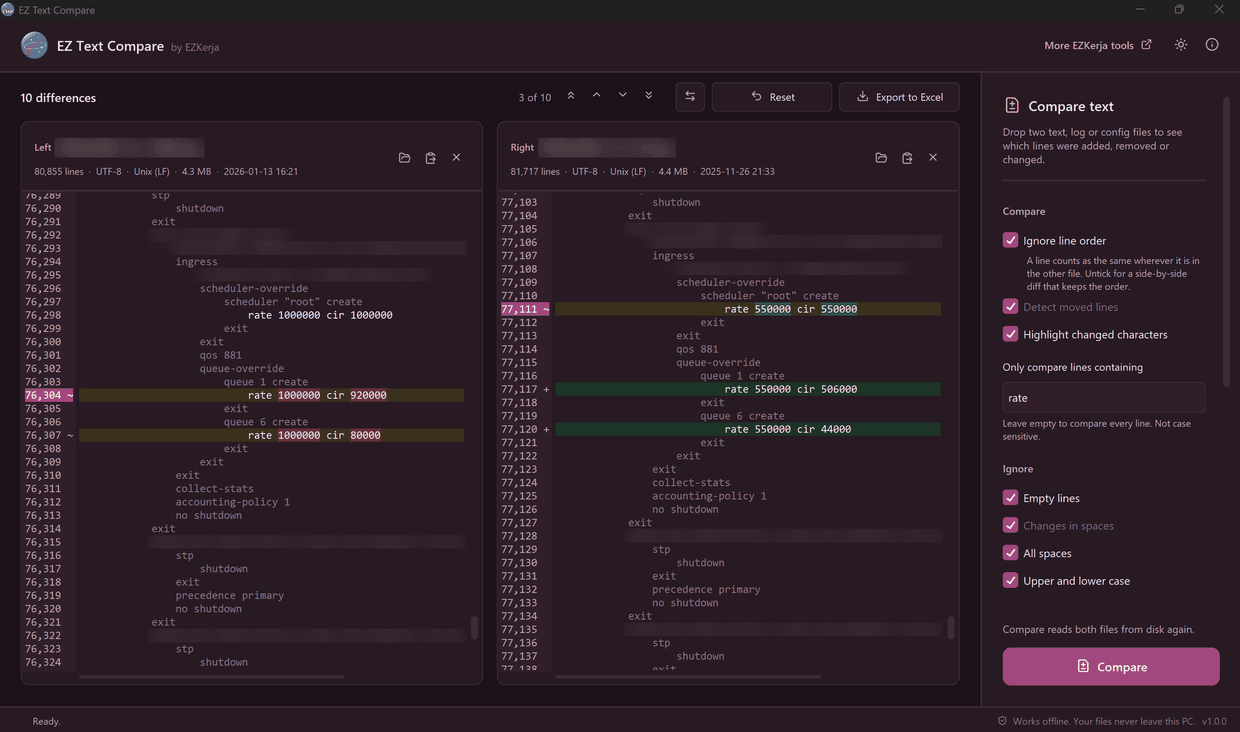
Dalam ujian kami, dua config sebenar — 80,855 line dan 81,717 line — dibandingkan pada line yang
mengandungi rate sahaja. Hasilnya 10 perbezaan, terus nampak nilai rate dan CIR yang berubah:
Had tool ini
- Ia tak edit atau merge. WinMerge dan Notepad++ dengan plugin Compare boleh edit kedua-dua belah, salin perubahan, banding folder dan integrate dengan Git. Tool ni hanya tunjuk perbezaan — dibuat untuk laju pada satu kerja tu.
- Text file sahaja, sampai 50 MB setiap fail. Tak banding Word, Excel atau PDF.
- Windows 10/11 sahaja.
- Belum code-signed. Windows SmartScreen mungkin bagi amaran kali pertama. Dua engine di VirusTotal (Arctic Wolf dan DeepInstinct) menandakan installer ni sebagai berisiko — itu false positive yang biasa untuk app Python yang belum signed. Source code penuh ada di GitHub, dan page download tunjuk SHA-256 serta laporan VirusTotal.
Cara dapatkan
- Pergi ke page download EZ Text Compare.
- Klik Download Installer (.exe), double-click, Next sampai siap. Tak perlu admin rights.
- Buka EZ Text Compare, drop dua fail, klik Compare.
Tak nak install? Ada versi portable (zip) di page yang sama. Percuma — takde licence key, takde account.
Perlu cari fail mana yang ada IP atau hostname tertentu dulu? Baca Config Mana Yang Ada IP Ni?
Download EZ Text Compare — atau WhatsApp kami kalau ada soalan, Bahasa Melayu atau English.
2 a.m. The change window is over. You have two files: show running-config from before the
change, and from after it. Before you close the ticket, there is one question to answer:
What actually changed — and did anything else change that we didn’t mean to?
If the config is 50 lines, you can read both. If it is 80,000 lines, you can’t.
A normal diff answers a different question
The usual way is to open a diff tool — diff, the Compare plugin in Notepad++, WinMerge and the
like. These are good tools. But most of them compare files by position: line 1 with line 1,
line 2 with line 2. When a block of lines changes place, the diff sees it as “removed here, added
there”.
A small example (vendor-neutral, example IPs). Only one change was made: the NTP server moved from
.10 to .11. But when the config was displayed again, the Vlan20 block came out above
Vlan10:
! Before ! Afterinterface Vlan10 interface Vlan20 description Users description Printers ip address 192.0.2.1 255.255.255.0 ip address 198.51.100.1 255.255.255.0! !interface Vlan20 interface Vlan10 description Printers description Users ip address 198.51.100.1 255.255.255.0 ip address 192.0.2.1 255.255.255.0! !ntp server 203.0.113.10 ntp server 203.0.113.11logging host 203.0.113.20 logging host 203.0.113.20This is what diff -u reports:
interface Vlan20 description Printers ip address 198.51.100.1 255.255.255.0!interface Vlan10 description Users ip address 192.0.2.1 255.255.255.0!interface Vlan20 description Printers ip address 198.51.100.1 255.255.255.0!ntp server 203.0.113.10ntp server 203.0.113.11logging host 203.0.113.20One change, nine marked lines. The diff is not wrong — by position, that is exactly what is different. But the 2 a.m. engineer’s question is not “what changed in the order”. It is “which lines were there before and are gone now, and which lines are new”.
In real configs this happens all the time: a device reorders its output, a config is exported from another tool, or a section is added in the middle. The result is a wall of red and green, and the real change is buried in it.
Two questions, two ways to compare
The right way to think about it is to separate the two questions:
- By content — “does this line exist in the other file, anywhere?” Order is ignored. What is left is either changed (a nearly identical line is on the other side, such as a different IP on the same interface) or only in one file.
- By position — the classic side-by-side diff.
For the example above, comparing by content gives the answer we want: 1 changed line,
ntp server 203.0.113.10 → 203.0.113.11, with only 10 → 11 highlighted.
But don’t throw away the second way. Some configs mean their order: ACLs, prefix-lists,
route-maps, firewall policies. If a permit and a deny line swap places, the content is the
same but the behaviour is not. For those, compare by position — and make sure lines that moved
are marked as moved, not removed.
Logs: every line is “different” because of the time
Logs have a problem of their own. Compare today’s log with yesterday’s:
2026-10-11 09:00:01 %LINK-3-UPDOWN: Interface Gi1/0/1, changed state to up2026-10-12 08:59:58 %LINK-3-UPDOWN: Interface Gi1/0/1, changed state to upSame event, different timestamp — so every line in the log looks different. In the three-line
example we tested, all three were marked as changed. With timestamps ignored, only one real
difference was left: the interface that went down yesterday was Gi1/0/7, today Gi1/0/9.
Common mistakes
- Comparing the whole file when only one kind of line matters. If the change was about QoS
rates, compare only the lines containing
rate. 80,000 lines become a few hundred. - Comparing raw logs with their timestamps. Every line becomes “different”, and what matters disappears.
- Believing “every line is different” without checking line endings. One file from Windows (CRLF), one from Unix (LF) — some tools treat every line as changed.
- Using a by-position diff for configs where order doesn’t matter — and the other way round, ignoring order for an ACL. Choose by the question.
The better approach
- Take the config or log from before and after.
- Decide the question: by content (most configs and logs) or by position (ACLs, policies).
- Remove the noise: timestamps, empty lines, spacing differences.
- If the change was focused, filter to the related lines only.
- Check every difference, and keep a list for the change report.
EZ Text Compare: those steps in one drop
We built EZ Text Compare because this job comes back every change window. It is a free Windows tool that runs offline on your own PC.
- Drop two files — the older one goes on the left, the newer on the right, automatically. Or paste output straight from a terminal. Then click Compare.
- Ignore line order (the default) — compare by content. Untick it for a side-by-side diff that keeps the order, with Detect moved lines for ACLs and policies.
- Highlight changed characters — in a changed line, only the part that changed is marked.
- Only compare lines containing — type
rate,interfaceor anything else; every other line is left out. Not case sensitive. - Ignore — empty lines, spacing differences, upper and lower case, dates and times, or your own regular expression.
- Export to Excel — one row per difference, ready for a report.
In our test, two real configs — 80,855 lines and 81,717 lines — were compared on the lines
containing rate only. The result was 10 differences, with the changed rate and CIR values in
plain sight:
Honest: what it doesn’t do
- It doesn’t edit or merge. WinMerge and Notepad++ with the Compare plugin can edit both sides, copy changes across, compare folders and integrate with Git. This tool only shows the differences — it is built to be quick at that one job.
- Text files only, up to 50 MB each. It doesn’t compare Word, Excel or PDF files.
- Windows 10/11 only.
- Not code-signed yet. Windows SmartScreen may warn you the first time. Two engines on VirusTotal (Arctic Wolf and DeepInstinct) flag the installer — a common false positive for Python apps that aren’t signed yet. The full source code is on GitHub, and the download page shows the SHA-256 and the VirusTotal report.
How to get it
- Go to the EZ Text Compare download page.
- Click Download Installer (.exe), double-click it, click Next until done. No admin rights needed.
- Open EZ Text Compare, drop two files, click Compare.
Don’t want to install? There is a portable (zip) version on the same page. Free — no licence key, no account.
Need to find which file has a certain IP or hostname first? Read Which Config Has This IP?
Download EZ Text Compare — or WhatsApp us with any questions, in Malay or English.