
Cari Teks Dalam Fail Config, Log, Excel & PDF — EZ File SearcherSearch Text Inside Config, Log, Excel & PDF Files — Free
/ 4 min read
Table of Contents
Table of Contents
Ada ticket masuk. Customer report IP 10.10.100.2 tak reachable. Soalan pertama: router mana
yang pegang IP ni?
Anda ada folder config backup. Dalam tu ada 300 fail — satu untuk setiap device, ditambah backup lama yang tak pernah dibuang. Anda tahu IP tu ada dalam salah satu fail. Tapi fail mana?
Anda taip IP tu dalam search box Windows Explorer. Tiada hasil.
Kenapa Windows search tak jumpa
Windows search dibina untuk cari nama fail. Untuk isi fail, ia bergantung pada Windows
indexer — dan indexer tu selalunya tak index folder kerja anda, tak kenal extension macam .cfg
atau .rsc, dan tak semestinya baca isi PDF atau setiap sheet dalam Excel.
Jadi hasilnya sama: anda tahu ayat tu wujud, tapi kena buka fail satu-satu.
Masalah yang sama muncul dalam kerja lain:
- Cari hostname dalam ratusan fail log session SSH.
- Cari serial number dalam folder dokumen handover — sebahagian Word, sebahagian PDF.
- Cari nama customer dalam folder Excel yang setiap fail ada lima sheet.
Kalau anda biasa dengan Linux, ni kerja grep -r. Masalahnya, grep tak boleh baca isi .docx,
.xlsx atau PDF — dan bukan semua orang dalam team selesa dengan command line.
Cara yang lebih baik: cari isi, bukan nama
Yang kita perlukan sebenarnya mudah: pilih satu folder, taip perkataan, dan dapat senarai setiap fail yang ada perkataan tu di dalamnya — berserta lokasi tepat dalam fail tu.
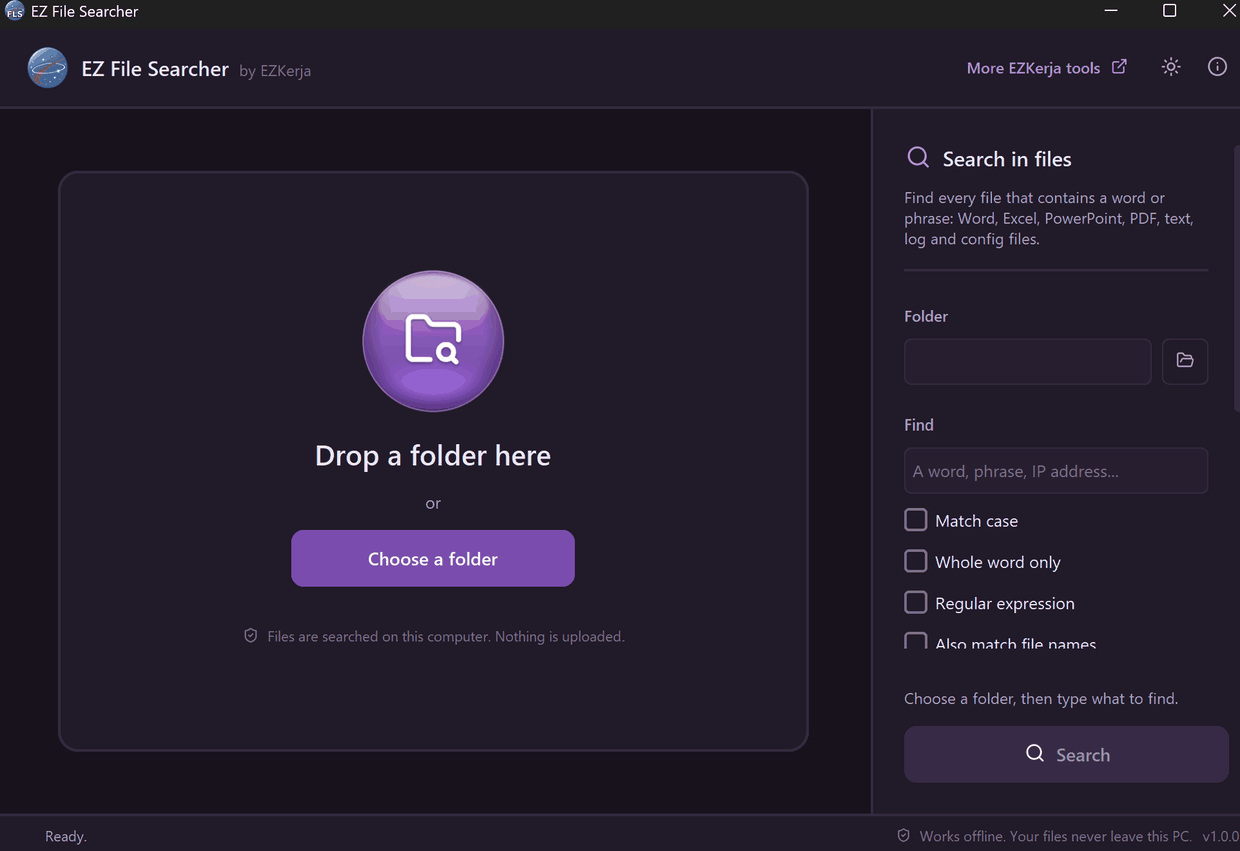
Itu yang EZ File Searcher buat. Drag folder masuk, taip apa yang dicari, tekan Enter.
Dalam contoh di bawah, kami cari perkataan router dalam satu folder log session. Ia baca
1,108 fail dalam 5.2 saat dan jumpa 9,971 match dalam 309 fail. Klik mana-mana fail dalam
senarai, dan ia tunjuk baris yang tepat — Line 34 — dengan perkataan itu di-highlight.
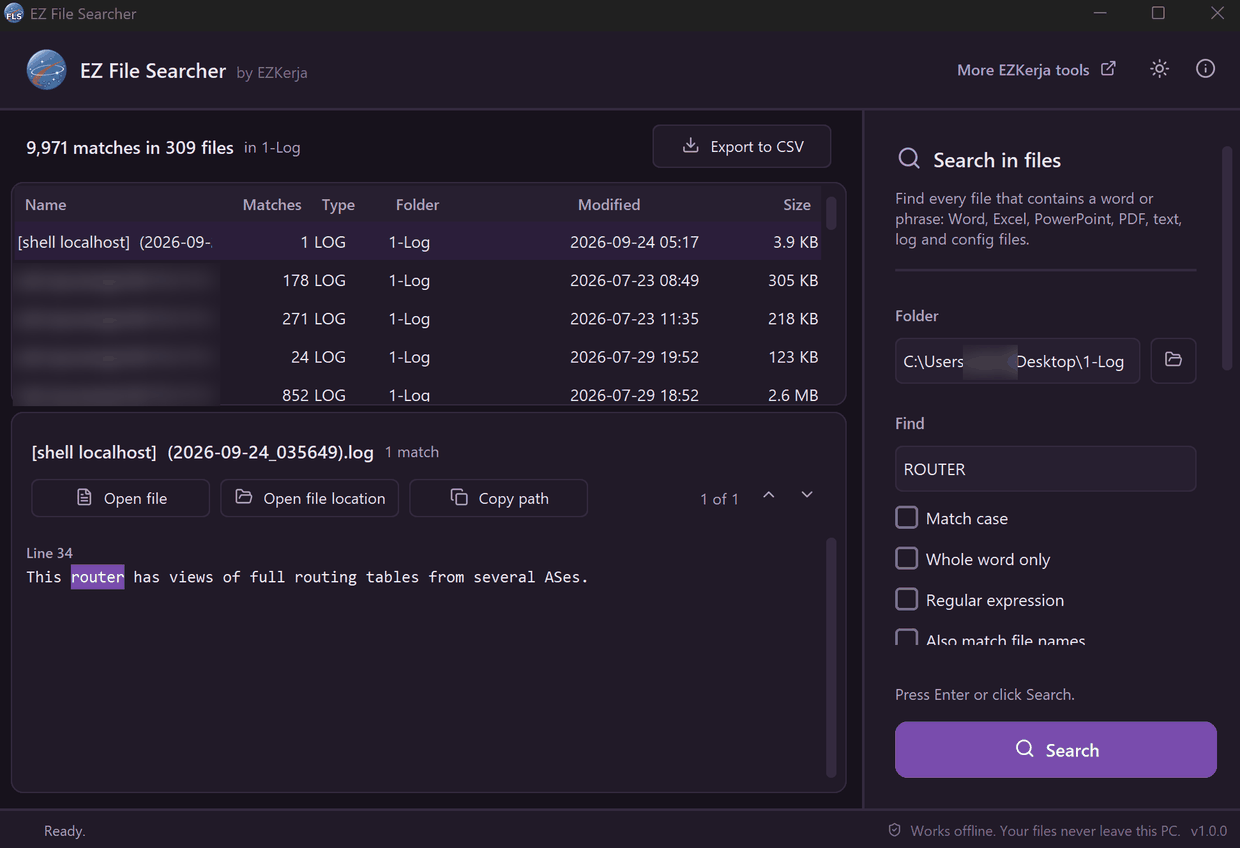
Dari situ, tiga butang:
- Open file — buka fail tu.
- Open file location — File Explorer terus buka folder dengan fail tu sudah dipilih.
- Copy path — salin path penuh untuk paste dalam ticket atau email.
Bukan sekadar fail text
| Jenis fail | Lokasi yang ditunjuk |
|---|---|
| Config, log, CSV, script, text | Line 42 |
Page 7 | |
| Excel (setiap sheet) | 'Stock list'!B12 |
| Word (termasuk table, text box, header, footer) | Table, Header, Footer |
| PowerPoint (termasuk speaker notes) | Slide 3 notes |
Extension sendiri macam .rsc atau .tmpl boleh ditambah. Ada juga Match case, Whole word
only, Regular expression, dan pilihan untuk padan nama fail sekali.
Satu tip untuk engineer: bila cari IP, guna Whole word only. Tanpa tu, cari 10.10.100.2
akan padan juga dengan 10.10.100.20 dan 10.10.100.254 — sebab teks 10.10.100.2 memang ada
di dalam dua-dua alamat itu. Untuk carian lebih tepat (contoh: semua IP dalam satu range), guna
Regular expression.
Perlu senarai untuk laporan? Export to CSV — setiap match satu baris: fail, folder, lokasi dan teks yang padan. Terus buka dalam Excel.
Kelebihan tool ini
- 100% offline. Fail dibaca dalam PC anda. Takde upload, takde account.
- Read-only. Ia tak pernah ubah, pindah atau padam fail anda.
- Script tak dijalankan. Klik hasil
.bat,.ps1atau.reg— ia dibuka dalam Notepad, bukan di-run. - Jujur pasal fail yang dilangkau. Fail berpassword, rosak, scanned PDF dan fail OneDrive yang online-only disenaraikan berserta sebabnya — bukan senyap-senyap hilang dari hasil.
Had tool ini
- Format Office lama tak dibaca —
.doc,.xls,.ppt(Office 97–2003) dan Outlook.msg. Save as.docx/.xlsx/.pptxdulu. - Scanned PDF takde teks untuk dicari. Takde OCR. Ia disenaraikan sebagai “scanned PDF”.
- Takde index. Ia baca fail setiap kali anda search. Folder besar ambil masa sepadan dengan saiz dia. Kalau anda cuma nak cari nama fail, Everything Search lebih laju — tool ni untuk apa yang ada di dalam fail.
- Windows 10/11 sahaja.
- Belum code-signed. Kali pertama buka, Windows SmartScreen mungkin tunjuk amaran. Klik More info → Run anyway. Page download tunjuk SHA-256 fail supaya anda boleh semak.
Cara dapatkan
- Pergi ke page download EZ File Searcher.
- Klik Download Installer (.exe), double-click, klik Next sampai siap. Ia pasang dalam folder user anda sendiri — tak perlu admin rights.
- Buka EZ File Searcher dari Start menu, drag folder masuk, dan cari.
Tak nak install? Ada versi portable (zip) di page yang sama.
Percuma sepenuhnya. Takde licence key, takde account, takde limit.
Download EZ File Searcher — atau WhatsApp kami kalau ada soalan, Bahasa Melayu atau English.
A ticket comes in. The customer reports that IP 10.10.100.2 is unreachable. First question:
which router holds this IP?
You have a folder of config backups. It holds 300 files — one per device, plus old backups nobody ever deleted. You know the IP is in one of them. But which one?
You type the IP into the Windows Explorer search box. No results.
Why Windows search doesn’t find it
Windows search is built to find file names. For file contents it relies on the Windows
indexer — and the indexer usually doesn’t index your work folders, doesn’t know extensions like
.cfg or .rsc, and doesn’t necessarily read inside a PDF or every sheet of an Excel file.
So the result is the same: you know the line exists, but you have to open the files one by one.
The same problem shows up elsewhere:
- Finding a hostname in hundreds of SSH session logs.
- Finding a serial number in a folder of handover documents — some Word, some PDF.
- Finding a customer name in a folder of Excel files, each with five sheets.
If you know Linux, this is a job for grep -r. The catch: grep can’t read inside .docx,
.xlsx or PDF files — and not everyone on the team is comfortable with the command line.
A better way: search the contents, not the name
What we actually need is simple: pick a folder, type a word, and get a list of every file that contains that word — with the exact location inside each file.
That is what EZ File Searcher does. Drag a folder in, type what you are looking for, press Enter.
In the example below we searched for router in a folder of session logs. It read 1,108 files in
5.2 seconds and found 9,971 matches in 309 files. Click any file in the list and it shows the exact
line — Line 34 — with the word highlighted.
From there, three buttons:
- Open file — opens the file.
- Open file location — File Explorer opens the folder with the file already selected.
- Copy path — copies the full path to paste into a ticket or email.
Not just text files
| File type | Location shown |
|---|---|
| Config, log, CSV, script, text | Line 42 |
Page 7 | |
| Excel (every sheet) | 'Stock list'!B12 |
| Word (including tables, text boxes, headers, footers) | Table, Header, Footer |
| PowerPoint (including speaker notes) | Slide 3 notes |
You can add your own extensions such as .rsc or .tmpl. There is also Match case, Whole
word only, Regular expression, and an option to match file names too.
One tip for engineers: when searching for an IP, use Whole word only. Without it, searching
10.10.100.2 also matches 10.10.100.20 and 10.10.100.254 — because the text 10.10.100.2
really is inside both addresses. For more precise searches (for example, every IP in a range), use
Regular expression.
Need a list for a report? Export to CSV — one row per match: file, folder, location and the matching text. Opens straight in Excel.
What it promises
- 100% offline. Files are read on your PC. No upload, no account.
- Read-only. It never changes, moves or deletes your files.
- Scripts are never run. Click a
.bat,.ps1or.regresult and it opens in Notepad — it is not executed. - Honest about skipped files. Password-protected, damaged, scanned and OneDrive online-only files are listed with the reason — instead of quietly missing from the results.
Honest: what it doesn’t do
- Old Office formats are not read —
.doc,.xls,.ppt(Office 97–2003) and Outlook.msg. Save them as.docx/.xlsx/.pptxfirst. - Scanned PDFs have no text to search. No OCR. They are listed as “scanned PDF”.
- No index. It reads the files every time you search, so a big folder takes as long as reading it does. If you only need to find file names, Everything Search is faster — this tool is for what is inside the files.
- Windows 10/11 only.
- Not code-signed yet. The first time you open it, Windows SmartScreen may show a warning. Click More info → Run anyway. The download page shows the file’s SHA-256 so you can check it.
How to get it
- Go to the EZ File Searcher download page.
- Click Download Installer (.exe), double-click it, and click Next until done. It installs into your own user folder — no admin rights needed.
- Open EZ File Searcher from the Start menu, drag a folder in, and search.
Don’t want to install? There is a portable (zip) version on the same page.
Completely free. No licence key, no account, no limits.
Download EZ File Searcher — or WhatsApp us with any questions, in Malay or English.